

- Canva is the best starting point for most small businesses: templates, speed, and a workable PDF print export when bleed is enabled.
- Adobe Express and Figma suit brand-conscious teams that need tighter color control or vector precision—both still need a prepress pass for CMYK.
- No tool guarantees press-ready files alone; upload any export for complimentary bleed, CMYK, and layout review before you pay.
Best free design tools for printing are not the same as best tools for Instagram. A layout that pops on a phone can still fail at the cutter—missing bleed, RGB blues that shift on coated stock, QR codes sitting on the trim line. This guide compares the five platforms our prepress desk sees most often on real orders: Canva, Adobe Express, Figma, Microsoft Designer, and Snappa. You get honest pros and cons for print buyers, export steps that reduce reprints, a head-to-head scoring table, and a print-readiness index chart. When tool choice feels like homework, the pivot at the end is simple: send a rough idea and let complimentary design finish the file before payment.
What are the best free design tools for printing?
The best free design tools for printing are browser-based apps that output PDFs at correct trim dimensions with bleed, embedded fonts, and CMYK-safe color when possible. For most small businesses, Canva balances templates and ease. Adobe Express adds Adobe color habits; Figma suits vector-heavy brand work; Microsoft Designer fits Office-centric teams; Snappa leans print templates. All five benefit from a human prepress review before production—none replaces bleed math or cutter tolerance by default.
Why the right design tool matters before you print
Design tools encode assumptions. Social-first apps optimize for RGB screens and square crops. Print production needs extra art beyond the final size, live type pulled inward from trim, and export settings that embed fonts instead of substituting them at the RIP. Picking a tool aligned with your skill level reduces proof cycles; picking the wrong one sends you back to rebuild at 10 p.m. before an event.
Design tools vs professional design: which is right for you
Use a free design tool when you have a clear offer, existing logo, and a standard size—business cards, 4×6 flyers, 8.5×11 handouts. Tools excel at speed and template guardrails. Hire professional design—or use complimentary prepress on your order—when brand guidelines are strict, folds are complex (tri-folds with panel logic), or you need spot UV, foil, or die lines that DIY exports rarely handle cleanly.
On our floor, the split is practical, not ideological. A salon owner with a Canva template and a booking QR is a perfect tool user. A law firm launching a rebrand across letterhead, envelopes, and folders is a professional-design job. Many buyers land in the middle: they design in Canva, then upload for free fixes so CMYK and bleed are correct before they approve payment. That hybrid is the most common successful path we see on card and flyer jobs.
#1 Canva: the small business favorite
Canva vs Adobe Express debates usually start here—and for good reason. Canva’s template library, drag-and-drop speed, and free tier cover most promotional print: grand openings, menu inserts, real estate handouts, church bulletins. Our prepress team receives more Canva PDFs than any other single source. Quality varies with export settings, not with the user’s taste.
Pros: ease of use, templates, free tier
Canva wins on time-to-first-proof. Search “4×6 flyer” or “business card” and you get layouts with hierarchy already set: headline band, photo block, contact strip. Non-designers finish a first draft in minutes. The free tier includes enough assets for typical small-business promos; paid tiers add brand kits and background removal that save cleanup time. Collaboration is simple—share a link, let a partner fix a phone number before export.
For print buyers, the hidden win is familiarity. Staff already know Canva from social posts, so training cost is near zero. When every seasonal rerun uses the same master template, brand recognition improves because layout stays consistent even when photos swap.
Cons: limited CMYK control, print export limitations
Canva is RGB-first. Blues and bright greens shift when converted for coated stock. Fine type below 8 pt can fill in on matte cardstock. Full-bleed photography needs manual bleed toggles—many users export “PDF standard” without bleed and wonder why white hairlines appear at the edge. Font embedding is better than it used to be but still worth verifying on the proof PDF at 100% zoom.
Advanced prepress features—overprint control, rich black recipes, spot colors—are not Canva’s focus. That is acceptable for most digital promo runs if someone checks the file before press. It is not acceptable for Pantone-critical identity systems without external conversion.
How to export a Canva file for professional printing
Match the document size to your ordered trim before you design—do not build letter size and shrink in the cart. Enable bleed when the export dialog offers PDF Print. Flatten transparency only if prepress asks; otherwise prefer PDF/X where available. Pull QR codes and phone numbers at least 0.125 inch inside the trim line. After export, open the PDF at actual size and scan the QR with your phone. Upload that file even if you are unsure; complimentary review catches the rest. For a full checklist on margins and color, pair this section with our guide on how to send print-ready files.
#2 Adobe Express: professional templates, easy learning curve
Adobe Express (formerly Spark) targets creators who want Adobe polish without opening full Photoshop or InDesign. Templates feel closer to marketing-agency layouts than quick social stickers. For print, that means cleaner typography defaults and better spacing out of the box—if you pick print-oriented templates rather than Instagram sizes.
Pros: Adobe ecosystem, better color controls
If your team already uses Adobe fonts and stock libraries, Express keeps assets consistent. Color pickers and brand kits respect hex values you can document for prepress—even though export may still be RGB, the starting values are often closer to intent than random template swatches. Resize suggestions nudge you toward standard print dimensions instead of only 1080×1080 squares.
Express also benefits from Adobe’s template curation: event flyers, menus, and cards often include clearer safe zones than generic social layouts. Pair Express with Acrobat for a final proof review and you get a credible small-business stack without monthly InDesign seats.
Cons: some features require a paid plan
Premium templates, certain fonts, and advanced remove-background tools sit behind subscription tiers. Free exports may carry watermarks on specific asset classes—always preview the PDF before ordering quantity. Print-specific bleed options are less explicit than dedicated prepress tools; you may still need a designer to extend backgrounds after export.
Learning curve is gentle compared to Figma, but Express is not instant for users who never touched Adobe products. Expect an afternoon to learn brand kit setup and PDF export paths.
#3 Figma: the designer’s choice
Figma for print shows up on collaborative brand projects: startups, agencies, and remote teams sharing component libraries. Figma is vector-native, frame-precise, and excellent for logo clear space rules. It is not built as a print exporter—yet designers love it for layout iteration before a prepress specialist exports production PDFs.
Pros: precision, vectors, collaborative
Frames map cleanly to trim sizes when someone sets constraints correctly. Components keep logo versions and color styles synchronized across business cards, letterhead, and slide decks. Comments and version history beat emailing “final_v7_really_final.pdf.” For vector logos and icon systems, Figma beats raster-heavy template tools.
Teams with a part-time designer on Figma and a print vendor on PDF/X can move fast: design in Figma, export PDF, upload for CMYK conversion and bleed verification. That workflow appears often on tech and nonprofit rebrands we print.
Cons: steeper learning curve, not made for print
Figma assumes screen delivery. CMYK profiles, bleed boxes, and crop marks require plugins or manual setup many casual users skip. Export defaults may rasterize effects in ways that surprise first-time print buyers. Non-designers can get lost in auto-layout and constraints without a template library as broad as Canva’s.
Exporting from Figma for print production
Create a frame at finished trim size plus bleed—typically 0.125 inch per side for U.S. promo work. Keep live text as outlines only if prepress requests; otherwise export PDF and let fonts embed. Use a plugin or manual marks for crop lines if your printer requires them. Dark backgrounds need explicit bleed extension on every edge; Figma will not auto-extend photos. Upload the export for review even when the designer “already checked it”—RIP behavior differs from Figma preview.
#4 Microsoft Designer: the Office user’s option
Microsoft Designer targets Word and PowerPoint veterans who want AI-assisted layouts without learning a new ecosystem. It generates variations from text prompts and integrates with Microsoft 365 storage—useful for schools, clinics, and municipal offices already on Office licenses.
Pros: integrates with Microsoft 365, AI-powered
Pull copy from Word, drop it into Designer, and let AI propose flyer structures. Brand colors from Office themes carry over. Sharing through OneDrive fits committees that approve church bulletins or PTA flyers asynchronously. For simple black-and-white handouts, Designer is often faster than installing a separate design app on locked corporate laptops.
Cons: limited print-specific features
Designer optimizes for presentations and web graphics first. Bleed, font embedding, and CMYK export paths are weaker than Canva’s print PDF option. Complex photography layouts may compress aggressively. Treat Designer output as a draft for prepress rebuild when the job is full-bleed photography on glossy stock—not as a final press file.
#5 Snappa: the print-oriented contender
Snappa flies under the radar in online design tool comparison articles but deserves mention for print-minded templates. Dimensions include common flyer, card, and social sizes with less clutter than all-in-one mega libraries. It suits owners who want faster browsing and fewer choices.
Pros: designed with print in mind, good templates
Snappa labels sizes with inches, not only pixel ratios—reducing the classic “I designed an Instagram post and ordered a 4×6” mistake. Backgrounds and text blocks map to promotional layouts: coupons, event headers, simple product grids. Export to PNG or PDF is straightforward for short runs when prepress will tune color anyway.
Cons: smaller template library than Canva
Fewer industry-specific packs mean more manual swapping for niche trades—plumbing icons, legal disclaimers, bilingual footers. Free tier limits may cap downloads or premium assets. Collaboration features are lighter than Canva or Figma. For teams that live on Snappa, keep master templates on a shared drive so each season reuses bleed-safe starting points.
Head-to-head comparison table
Use this table as a category scorecard—not a verdict on your creative taste. Scores reflect what we see on press after typical free-tier exports, before complimentary prepress fixes.
| Tool | Ease of use | Print readiness | CMYK / color control | Free tier quality | Best for |
|---|---|---|---|---|---|
| Canva | Excellent | Good with correct PDF export | Limited (RGB-first) | Strong templates | First-time print buyers, events, menus |
| Adobe Express | Very good | Good | Better than Canva, not full CMYK | Good; some assets paid | Brand-conscious small teams |
| Figma | Moderate | Fair without plugins | Screen-first; convert on export | Strong for teams | Vector brands, designer-led shops |
| Microsoft Designer | Very good for Office users | Fair | Limited | Good inside 365 | Schools, offices, simple handouts |
| Snappa | Very good | Good for standard sizes | Limited | Good; smaller library | Quick promos, inch-based templates |
Our recommendation: when to use each tool
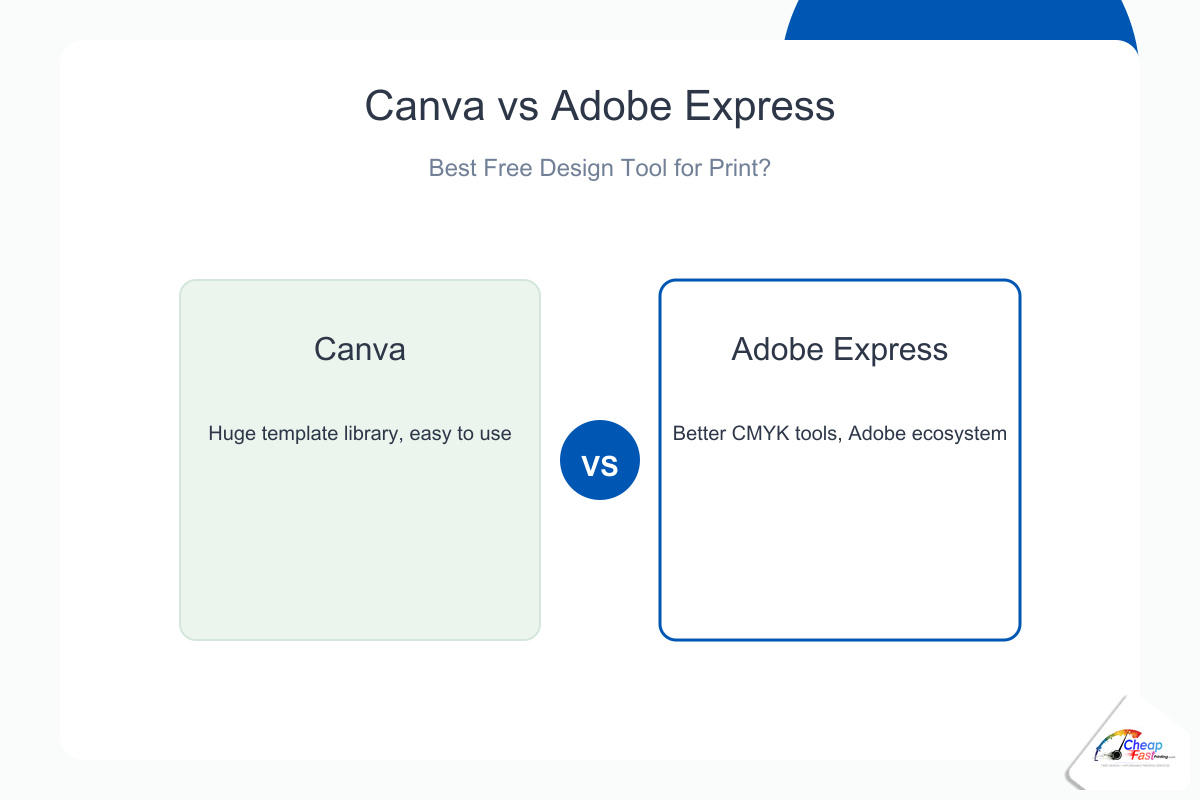
No single app wins every job. Match tool to team skill, brand complexity, and how often you rerun the same layout.
First-time print buyer: start with Canva
If this is your first flyer or card order, Canva’s template breadth and community tutorials beat the learning curve of Figma or manual bleed math. Set trim size first, enable bleed on PDF Print export, upload for review. You will learn prepress vocabulary from proof comments—hairlines, safe zone, embed fonts—without paying for agency hours upfront.
Brand-conscious businesses: Adobe Express or Figma
When hex colors, logo clear space, and typographic hierarchy are documented in a brand guide, Express or Figma keeps decisions consistent. Express if marketing staff are generalists; Figma if a designer owns components. Still budget one prepress proof for CMYK shifts on coated stock—brand colors on screen are not brand colors on paper until someone verifies them.
Office and education teams: Microsoft Designer
Committees that already live in Word/Teams move faster in Designer than learning Canva from zero—accept that complex photo bleeds may need a prepress rebuild. Keep copy short; use high-resolution photos sourced from cameras, not stretched web thumbnails.
Speed over library size: Snappa
Choose Snappa when you want inch-labeled templates and less scroll fatigue. It is a strong design tool for non-designers who run repeating coupons, gym promos, or open-house handouts and do not need Canva’s million-template noise.
Cost and value tiers: DIY tools vs complimentary prepress
| Path | Your time | Typical outcome | When it fits |
|---|---|---|---|
| Tool + self export | Low to medium | Good for simple layouts if export settings are correct | Tight budget, simple SKU |
| Tool + free prepress review | Low | Strongest risk/reward for small business | Most orders we see |
| Professional designer | Low for you, higher cash cost | Full brand systems, complex folds | Rebrands, franchises |
| Skip tools entirely | Minimal | Proof PDF from logo + copy | No time or no comfort with software |
Real-world scenarios we see on the floor
Scenario: bakery grand opening. Owner builds a 5×7 in Canva with product photos and a QR menu. Export lacks bleed; prepress extends the pastry photo background and moves the QR inward. One proof cycle, no InDesign license needed.
Scenario: startup pitch cards. Designer ships Figma PDF with tight logo rules. CMYK conversion shifts the brand blue; prepress adjusts ink limits and sends a side-by-side proof. Founder approves before payment—cheaper than reprinting 1,000 cards with the wrong hue.
Scenario: church volunteer bulletin. Microsoft Designer draft from an Office theme; black text on dark photo fails contrast. Prepress rebuilds with readable type and prints matte stock for lobby lighting. Tool got them 70% there; human finish got them press-ready.
Skip design altogether: our free design service
Tool comparisons help when you enjoy software. Many buyers do not—and that is normal. Complimentary design tied to your print order means you can upload a Canva PDF, a Figma export, a phone photo of an old flyer, or nothing but a logo and phone number. Prepress classifies the job as fix versus rebuild, returns a proof PDF, and you approve before production charges on pay-later workflows.
Let our designers do it at no extra cost
AI accelerates first drafts on from-scratch work; humans set bleed, embed fonts, correct CMYK, and catch content errors software misses. The same team that reviews Canva exports daily will rebuild your layout on the correct trim size if you ordered a 4×6 but designed a square social graphic. You are not choosing between “free tools” and “paid design” in the abstract—you are choosing between spending your evening on export settings or spending five minutes on an upload form.
Not sure which tool to open? Do not open any. Describe the promotion, attach whatever logo and photos exist, and request design help in the upload notes. That path pairs with the complimentary workflow described in our free AI + human graphic design for printing guide—same policy, same proof-before-pay guardrail.
Design tool tutorials and further resources
Build skill in the tool you pick, but let prepress own color conversion and bleed extension until you are confident.
- Canva: search Help for “PDF for print” and “bleed” before your first export; save brand colors as a kit for seasonal reruns.
- Adobe Express: Adobe’s learn hub covers resize for print and brand kit setup—finish with a 100% zoom PDF review.
- Figma: community plugins for bleed and crop marks; agree internally who owns export so frames do not drift.
- Microsoft Designer: use high-resolution source photos; treat AI layouts as drafts, not finals, on full-bleed jobs.
- Snappa: favorite inch-based templates to your account; duplicate before editing so masters stay clean.
Keywords like free graphic design software, best free design app, and Canva print ready lead to endless listicles. Focus on export checklists and one trusted proof cycle instead of switching apps every month—consistency beats novelty for local print marketing.
Export from any tool—or skip software entirely. Upload your file or logo folder for complimentary design tuning and a proof before you pay.
Frequently asked questions
Which free design tool is best for printing?
For most small businesses, Canva is the best starting point because templates, collaboration, and PDF Print export with bleed cover common flyer and card sizes. Adobe Express suits tighter brand control; Figma suits designer-led vector work; Snappa suits quick inch-based promos. All benefit from prepress review before quantity orders.
Is Canva print ready when I download a PDF?
Only if you matched trim size before designing, enabled bleed on PDF Print, kept type and QR codes inside the safe zone, and used high-resolution photos. Canva remains RGB-first, so CMYK conversion and ink limits still need a proof review for critical brand colors on coated stock.
Canva vs Adobe Express for print flyers?
Canva wins on template breadth and ease for first-time buyers. Adobe Express wins when you already use Adobe fonts and brand kits and want cleaner typographic defaults. Both export RGB PDFs typically—plan on a CMYK prepress pass for either when color accuracy matters.
Is Figma good for business cards and brochures?
Figma is excellent for designing vector-native brand layouts and collaboration, but it is screen-first. Business cards and brochures need correct bleed, font embedding, and sometimes CMYK conversion via export plugins or prepress. Non-designers usually move faster in Canva unless a designer owns the Figma file.
Does Microsoft Designer work for professional printing?
Designer works for simple office handouts and drafts when teams already use Microsoft 365. Full-bleed photography, fine type, and strict brand color on glossy stock often need a rebuild in prepress. Treat Designer output as a starting point for complex promo print.
What is Snappa compared to Canva?
Snappa offers a smaller template library with clearer inch-based print sizes and less browsing noise. Canva offers more industry templates and collaboration features. Snappa fits quick repeating promos; Canva fits broader marketing teams and heavier template needs.
Do I still need prepress if I use a “print” template?
Yes, in most cases. Templates help hierarchy and margins; they do not guarantee embedded fonts, correct bleed on photos, CMYK-safe color, or QR placement inside cutter tolerance. Upload for a proof PDF even when the template says print ready.
What if I do not want to learn any design tool?
Upload your logo, photos, and copy through the file uploader and request complimentary design help. Prepress can rebuild layouts on the correct trim size and send a proof before payment. No Canva or Figma account required.