
Free Bleed & Safe Zone Visualizer

Prepress & File Check

Bleed and safe zone visualizer for print

Overlay bleed lines, crop marks, and a safe zone guide so every layout ships as a clean, press ready file. Use it free online — or upload files for free Human + AI review by our prepress team.

bleed linessafe zone guidetrim sizecrop markslayout marginspress ready filesoffset printingdigital printingprepress checklistartwork template

Drop artwork (JPG/PNG)

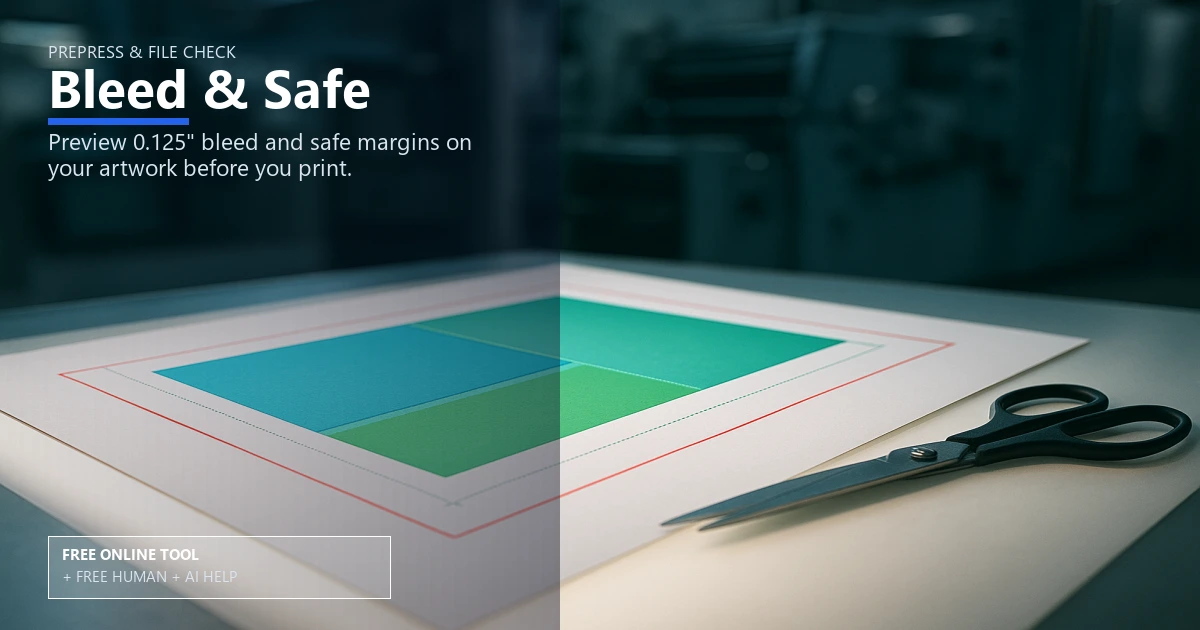
Red = bleed edge · Green dashed = recommended safe zone (0.125" inside trim)

Free Human + AI option

Not ready to trust the tool alone?

This Bleed & Safe utility is 100% free in your browser. If you want our prepress team to run the same job manually — with AI assistance — upload your files and we will review and email you back at no charge.

  • Upload PDFs, images, spreadsheets, or screenshots of your results
  • Ask for Human + AI help with this exact task in the notes
  • Get a manual check plus AI-assisted fixes before you print

How to use this tool

  1. Load your artwork Drop in the artwork template or upload a PDF to preview.
  2. Adjust bleed and margins Set bleed lines, trim size, and layout margins with quick presets.
  3. Export confidently Download press ready files and follow the prepress checklist.
  4. Optional: request free Human + AI help Prefer a real prepress review? Upload your files and note “Bleed & Safe” — our team will run the same task manually with AI assistance and email you back at no charge.

Every step above can also be handled by our team — use the Human + AI upload button if you prefer personal assistance.

See your bleed and safety instantly

The bleed and safe zone visualizer lays down bleed lines, crop marks, and a visible safe zone guide so headlines and logos never get clipped at the trim size.

It doubles as a layout margins coach, letting you start from an artwork template and keep press ready files aligned for offset printing or digital printing.

Follow a reliable prepress checklist

Quickly verify every item—bleed distance, live area, and color mode—then pair this with the DPI resolution checker and print size cropper for a full prepress checklist before sending to the file uploader.

Keep production on schedule

Clean bleed lines reduce remake risks, and consistent trim size edges mean faster finishing across every run.

Free online — or free Human + AI assistance

This page runs entirely in your browser at no cost. If you prefer a second set of eyes, email or upload your files through our complimentary file uploader and ask for Human + AI help with Bleed & Safe. Our team will perform the same task manually, use AI where it helps, and send proof-ready feedback — also free.

Need broader design support? See our free Human + AI design services.

Frequently asked questions

How much bleed should I add?

Standard bleed is 0.125" per side; some large format pieces use 0.25".

Do I need crop marks?

Crop marks help bindery teams align the trim size; include them on PDFs.

Will the safe zone guide change my art?

No, it is an overlay to keep type and logos away from the edge before exporting press ready files.

Which tools pair best?

Use the DPI checker and fold line visualizer for brochures.

Can your team do this for me instead of using the online tool?

Yes. The browser tool is free and private, but if you would rather not rely on it alone, upload your files via our complimentary file uploader and request Human + AI help with “Bleed & Safe”. Our prepress team will review manually — with AI assistance — and reply for free.

Browse the free print toolbox

View all 31+ calculators and file utilities · Also try merge to PDF, PDF to JPG, and QR codes.

🔒 Secured by 256-Bit SSL | Data Protection Guaranteed | 10,000+ Happy Customers | A+ Rating